
DocsTutorials / Try Agents
Web Tutorial
Try Agent (Quick Launch)
Get the Launch Token from the web and run agents on your Desktop app.
1
Browse the Peedika Store
Visit the Peedika Store on the Orrerygen website. Browse agents by category or search for specific capabilities.
2
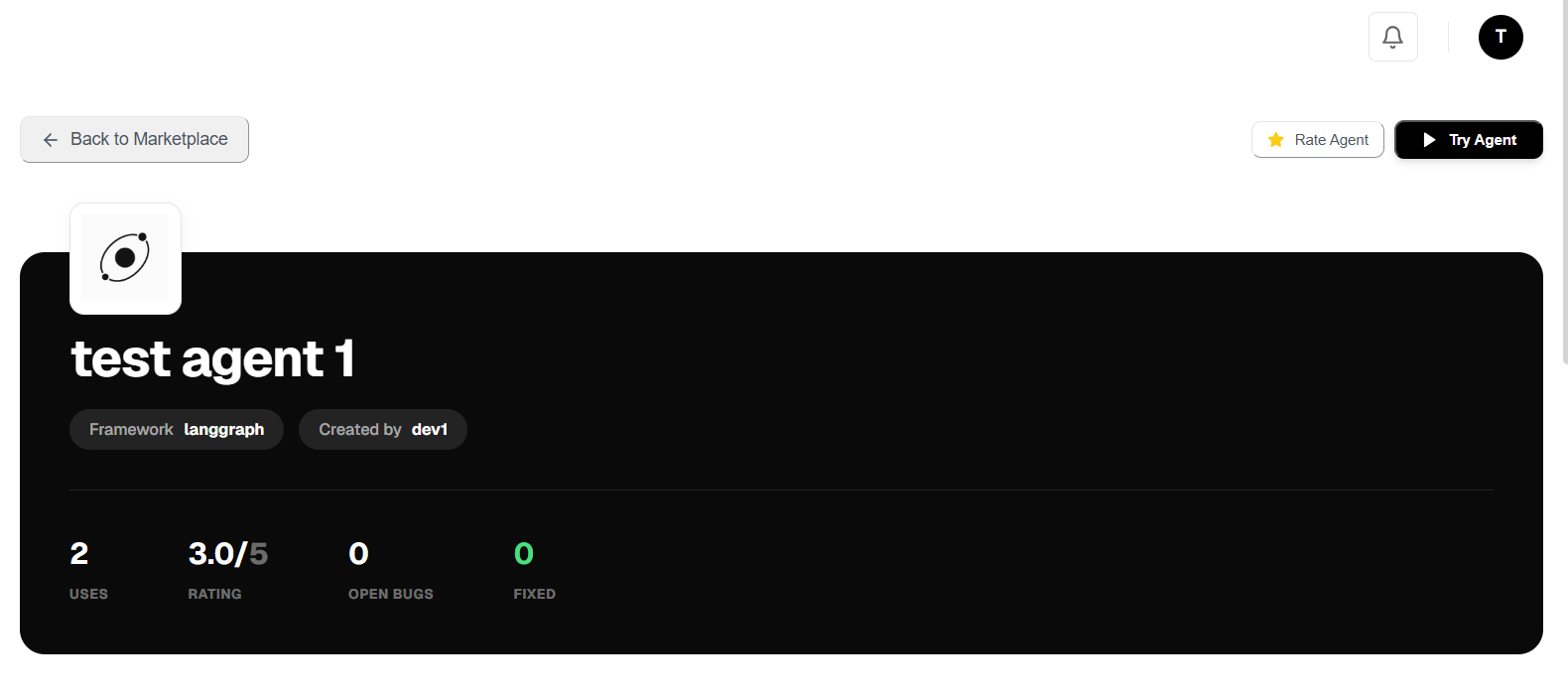
Open Agent Details
Click on any agent card to view its documentation page. You'll find:
- Description: Full details about capabilities
- Inputs/Outputs: Technical specifications
- Discussion: Community questions
- Reviews: User ratings and comments
3
Click "Try Agent"
Click the Try Agent button in the top-right of the agent page.
A Quick Launch modal will appear showing:
- Launch Token: A base64-encoded token unique to this agent
- Copy button: One-click copy to clipboard
- Instructions: Steps to use the token in Desktop
4
Copy the Launch Token
In the Quick Launch modal:
- Click the copy button next to the token.
- The token is now in your clipboard.
Token Format: The Launch Token looks like b3JyZXJ5OmFiY2QxMjM0... (base64 encoded).
5
Run on Desktop
Now use the token in the Orrerygen Desktop app:
- Open Orrerygen Desktop.
- Go to the Dashboard.
- Find the Quick Launch section.
- Paste the Launch Token into the input field.
- Click Run.
Don't have the Desktop app? Click the download link in the modal or visit the Downloads page.
Pro Tip
Free agents are also available directly in the Desktop Library. You can browse and install them without copying tokens.